My Journey
Introduction
The Cybersecurity Journey area of the CIS SecureSuite Platform transforms your CIS Controls IG1 assessment results into an interactive visualization of your organization's cybersecurity posture, gaps, and recommended tools.
What is the Cybersecurity Journey?
The Cybersecurity Journey organizes your Controls assessment scores by six security function stages — Govern, Identify, Protect, Detect, Respond, and Recover — so you can understand where your organization stands in its security maturity, what your most important gaps are, and which tools can help you address them. Within each stage, safeguards are further organized into 10 tool categories developed as part of the CIS Cost of Cyber Defense: CIS Controls IG1 guide, which identifies the types of tools needed to implement essential cyber hygiene.
Note
The Cybersecurity Journey feature must be enabled by a System Admin before it is visible. See Cybersecurity Journey: Access and Visibility for details.
This guide covers:
- Cybersecurity Journey: Access and Visibility
- Getting Started with the Cybersecurity Journey
- Journey Page
Cybersecurity Journey: Access and Visibility
To enable the Cybersecurity Journey, toggle it on in Admin > System Settings under the Additional Features section. When disabled, all Journey surfaces are hidden from all users, including the sidebar section, the Home page card, and the Journey page.
The logged-in user must also meet the following requirements:
- Belong to an organization created in Admin > Organizations
- Be assigned a role of Org Admin or Full User
Enable the Cybersecurity Journey
- Go to Admin.
- Select the System Settings tab.
- Scroll to the Additional Features section.
- Locate Cybersecurity Journey and toggle it on.
Disable the Cybersecurity Journey
- Go to Admin.
- Select the System Settings tab.
- Scroll to the Additional Features section.
- Locate Cybersecurity Journey and toggle it off.
Warning
If a user is actively viewing the Journey page when the option is turned off, they will be redirected to the Home page.
Role Requirements
The Cybersecurity Journey is only available to users with at least one of the following roles in one or more organizations:
- Org Admin
- Org Full User
Users with no organization role, or only a Basic organization role, do not see the My Journey navigation link or the Journey summary on the Home page. Users are only able to view Controls assessments for the organizations where the have one of the mentioned roles for.
Getting Started with My Cybersecurity Journey
To get value from the Cybersecurity Journey, you need a completed CIS Controls v8.1 assessment. Here is the general flow from start to finish:
- A System Admin enables the Cybersecurity Journey toggle in Admin > System Settings, under the Additional Features section.
- An organization exists in Admin > Organizations
- The logged in user has been added to the desired organization with a role of Org Admin or Full User to an organization
- An Organization Admin or Full User navigates to My Journey in the sidebar or selects the "View full journey" link on the Home page.
- The user selects a completed CIS Controls v8.1 assessment from the Assessment Picker.
- The Journey loads and displays your organization's security posture across the six security function stages.
- Select any category tile to drill into the Category Detail view, review your gaps, and explore tool recommendations.
Tip
Only completed CIS Controls v8.1 assessments scored using the Simple or Advanced scoring method can be loaded into the Cybersecurity Journey.
Note
The selected assessment is saved per user and per session. When you log back in, the Journey automatically reloads the last assessment you selected — provided you still have access to it. Each user's selection is independent; one user loading an assessment does not affect what another user sees.
Journey Page
To access your Journey page, select My Journey from the JOURNEY section in the sidebar.
The following information is displayed if all of these conditions are met:
- You have created an organization
- You have been assigned to an organization
- Your role for at least one assigned organization is Org Admin or Full User
- My Journey is enabled
No Controls Assessment Selected
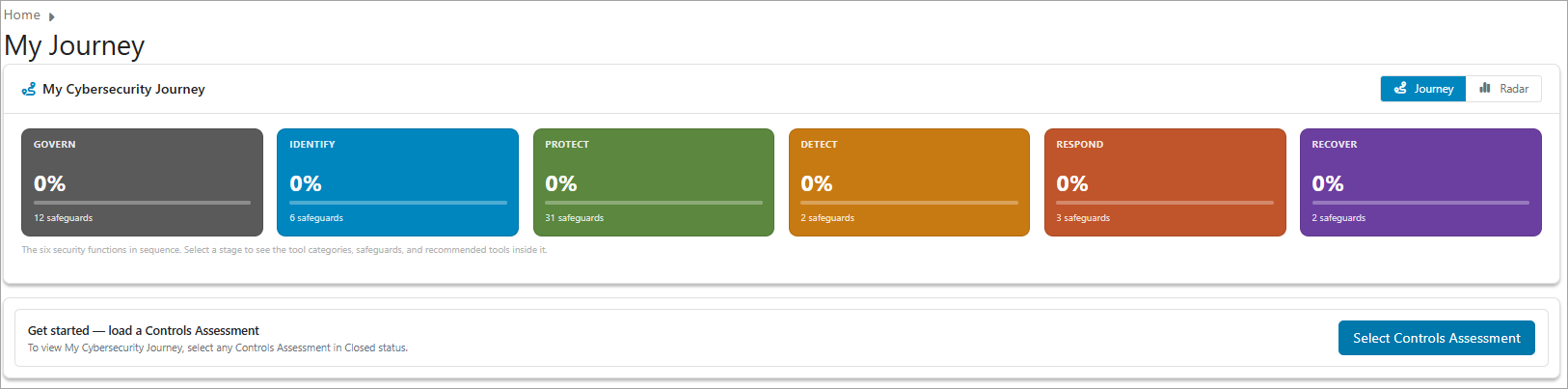
When all conditions are met, My Cybersecurity Journey displays with zero percentages until a Controls Assessment is selected.
Controls Assessment Selected
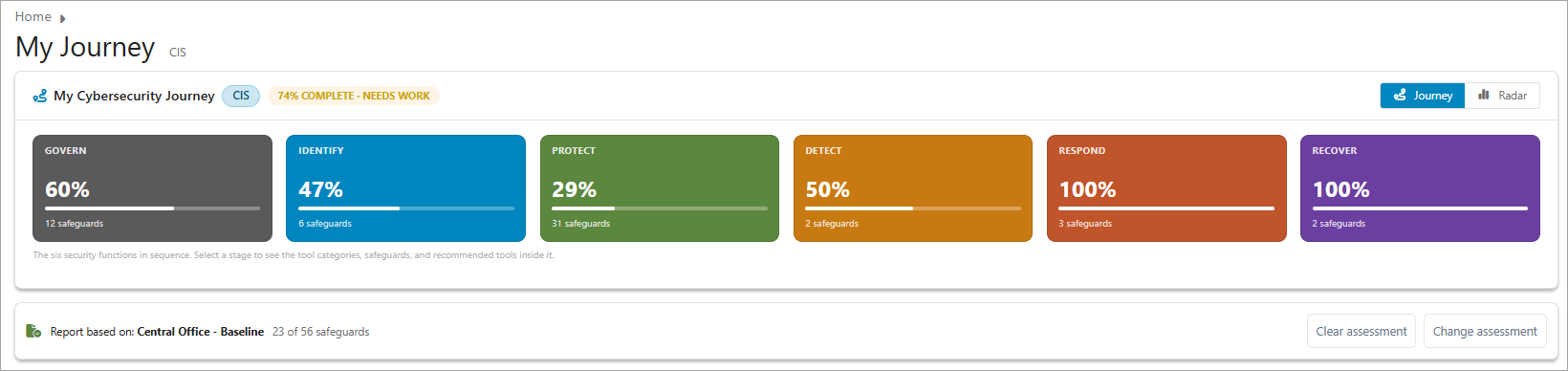
- The organization name: Represents the organization name for the loaded Controls assessment.
- Score/status indicator: A combined indicator showing your overall completion percentage and status.
| Status | Score Range |
|---|---|
| ON TRACK | ≥ 80% |
| NEEDS WORK | 40 – 79% |
| IMMEDIATE ATTENTION | < 40% |
- Security function tiles: Averaged scores for Govern, Identify, Protect, Detect, Respond, and Recover, each color-coded by status.
- A View preference toggle: Allows user to select a path view by each NIST security function or a radar view.
- Controls assessment selector:
NIST Security Function View (Default)
The view presents your security posture by the six security function stages: Govern, Identify, Protect, Detect, Respond, and Recover.
Select a security function to display the tool categories developed in the CIS Cost of Cyber Defense. Each tool category shows a color bar representing category's score based on the selected Controls assessment and the scoring for each mapped safeguard. The bar color is assigned based on the overall tool category score:
| Color | Score Range |
|---|---|
| Green | ≥ 80% |
| Amber | 40 – 79% |
| Red | < 40% |
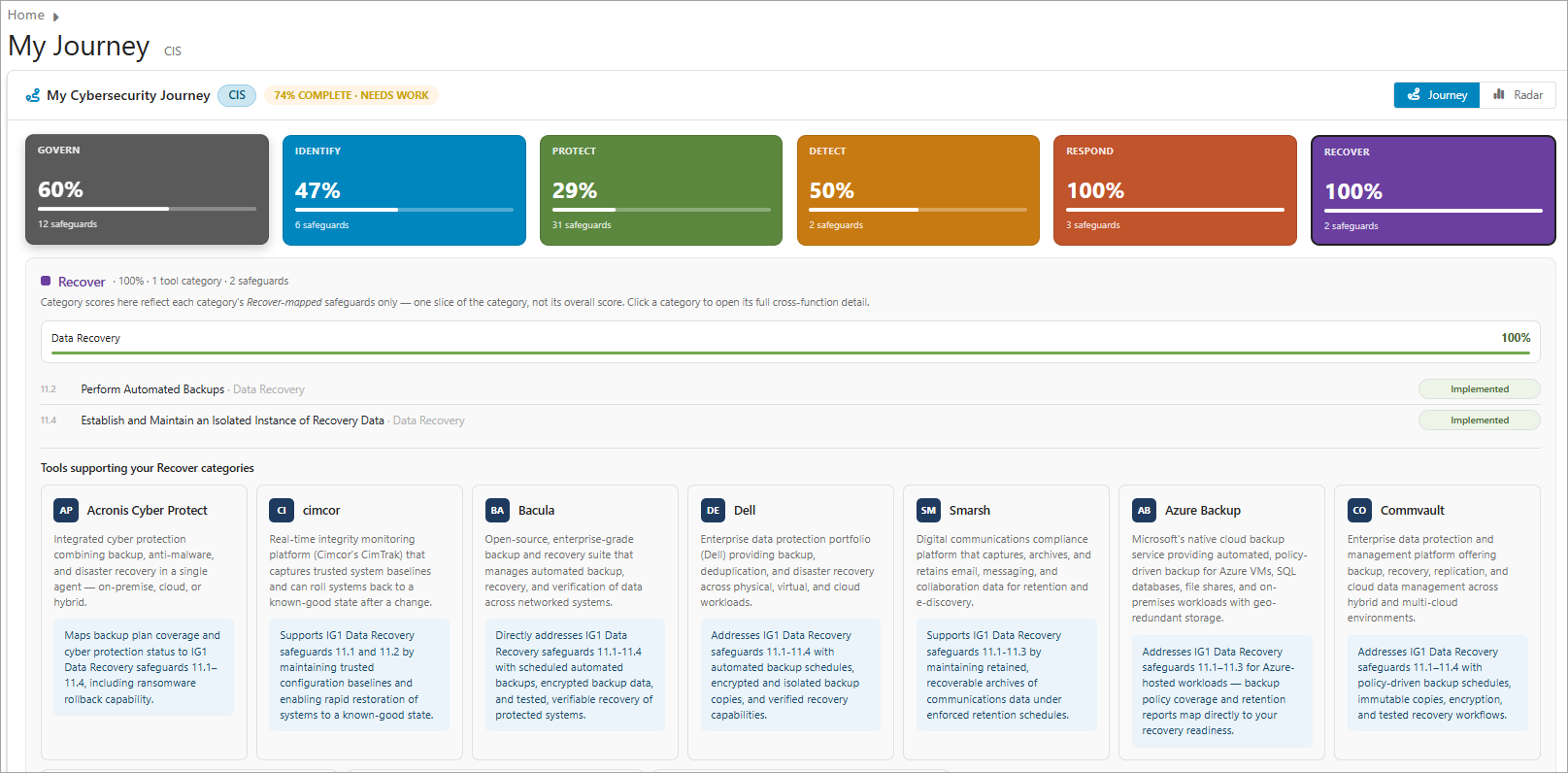
Select any category tile to open the Category Detail view for that category.
Radar View
For an alternative visualization, select the Radar on the view toggle.
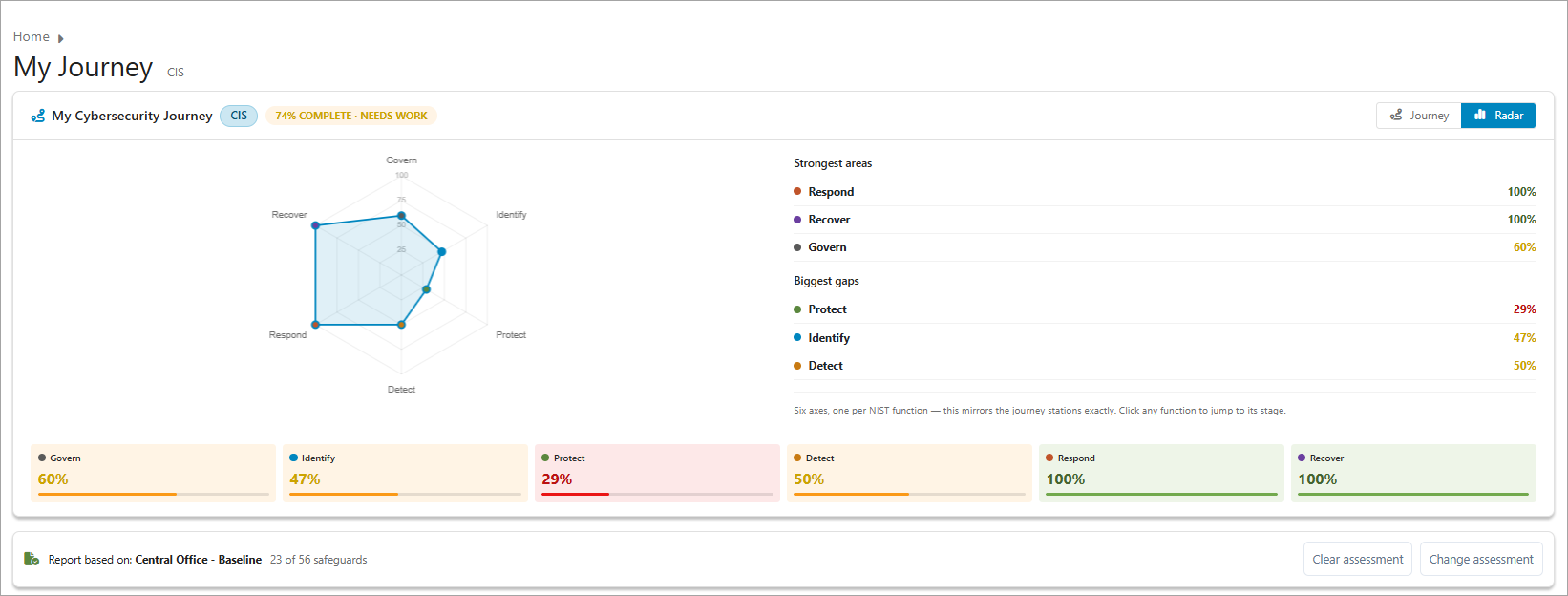
The Radar view displays all 10 journey categories plotted on a radar chart, giving you a visual overview of your security posture across all areas simultaneously.
Below the chart, two summary lists are shown:
- Strongest categories: Your highest-scoring NIST security function categories
- Biggest gaps: Your lowest-scoring NIST security function categories
Select any category in either list to navigate to its Category Detail view.
Category Detail
Select a category tile on the Journey page or a gap category on the Home page card to open the Category Detail view for that category.
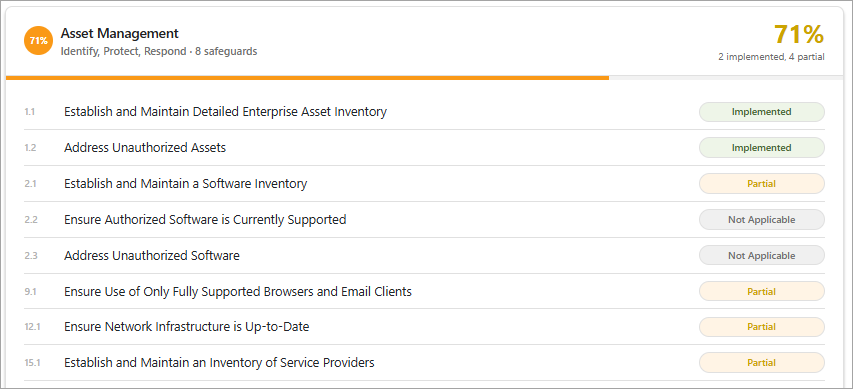
The Category Detail view has two sections: the mapped safeguards and the recommended tools supporting the NIST security function.
- Safeguard ID and title: (for example, 1.1 — Establish and Maintain Detailed Enterprise Asset Inventory)
- Score percentage: Average of all safeguard scores within that category, using each safeguard's value from the Controls assessment; Not Scored safeguards are counted as zero and Not Applicable safeguards are excluded from the average.
- Safeguard Score Description: the safeguard's implementation score, shown with a color-coded indicator.
Each safeguard displays one of the following status indicators based on the Controls assessment:
| Status | Color | Description |
|---|---|---|
| Implemented | Green | The safeguard is fully implemented |
| Partial | Orange | The safeguard is partially implemented |
| Not Started | Red | The safeguard has not been implemented |
| Not Applicable | Grey | The safeguard has been marked as not applicable to the organization |
| Not Scored | Grey | The safeguard was not scored in the selected assessment |
Tool Recommendation Cards
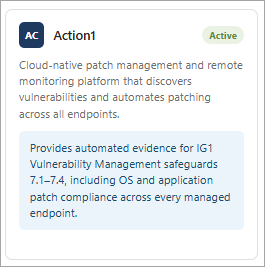
Below the gap list, Tool Recommendation Cards suggest tools that can help you address the gaps in the selected category. Each card displays:
| Element | Description |
|---|---|
| Tool name | The name of the recommended tool |
| Description | What the tool does |
| Value statement | How this tool specifically addresses the CIS Controls gap |
| Badge | Displays the tool's integration state as Active if configured |