Executive Briefing
Introduction
The Executive Briefing area of the CIS SecureSuite Platform turns your CIS Controls IG1 assessment results into a leadership-ready cybersecurity posture report. It is generated automatically from the Controls assessment you have already loaded into My Journey, so there is nothing extra to score or configure.
What is the Executive Briefing?
The Executive Briefing presents a single headline posture score, followed by your results grouped by NIST security function and tool category, your strengths and priority gaps, the safeguards that have not yet been started, prioritized recommendations, and example vendors for the tool categories behind your biggest gaps. The report can be viewed on screen or exported to PDF or PowerPoint to share with leadership.
Because the briefing is built from your CIS Controls IG1 assessment, the numbers you see match what is shown on the Home page and in My Journey.
Note
The Executive Briefing must be enabled by a System Admin before it is visible, and it requires the Cybersecurity Journey to be enabled. See Executive Briefing: Access and Visibility for details.
This guide covers:
- Executive Briefing: Access and Visibility
- Getting Started with the Executive Briefing
- Executive Briefing Page
- Exporting the Executive Briefing
Executive Briefing: Access and Visibility
To enable the Executive Briefing, toggle it on in Admin > System Settings under the Additional Features section. The Executive Briefing depends on the Cybersecurity Journey, so both settings must be on for the briefing to be available.
- If the Cybersecurity Journey is toggled off, the Executive Briefing is automatically toggled off as well.
- When the Executive Briefing is disabled, the Executive Briefing navigation link is hidden for all users and the page cannot be reached by entering its address directly. Users who try are redirected to the Home page.
The logged-in user must also meet the following requirements:
- Belong to an organization created in Admin > Organizations
- Be assigned a role of Org Admin or Full User
Enable the Executive Briefing
- Go to Admin.
- Select the System Settings tab.
- Scroll to the Additional Features section.
- Confirm that Cybersecurity Journey is toggled on. See Enable the Cybersecurity Journey.
- Locate Executive Briefing and toggle it on.
Disable the Executive Briefing
- Go to Admin.
- Select the System Settings tab.
- Scroll to the Additional Features section.
- Locate Executive Briefing and toggle it off.
Warning
If a user is actively viewing the Executive Briefing when the option is turned off, they will be redirected to the Home page. Turning off the Cybersecurity Journey also turns off the Executive Briefing.
Role Requirements
The Executive Briefing is only available to users with at least one of the following roles in one or more organizations:
- Org Admin
- Org Full User
Users with no organization role, or only a Basic organization role, do not see the Executive Briefing navigation link. The briefing only displays information for the organization of the Controls assessment loaded into My Journey, and only when the logged-in user has access to that organization.
Getting Started with the Executive Briefing
To get value from the Executive Briefing, you need a completed CIS Controls v8.1 assessment loaded into My Journey. Here is the general flow from start to finish:
- A System Admin enables the Cybersecurity Journey and Executive Briefing toggles in Admin > System Settings, under the Additional Features section.
- An organization exists in Admin > Organizations.
- The logged-in user has been added to the organization with a role of Org Admin or Full User.
- The user loads a completed CIS Controls v8.1 assessment into My Journey. See Getting Started with My Cybersecurity Journey.
- The user selects Executive Briefing from the JOURNEY section in the sidebar.
- The briefing displays the posture report for the loaded assessment.
- Review each section, then export the briefing to PDF or PowerPoint to share with leadership.
Tip
The Executive Briefing does not have its own assessment picker. It always reflects the assessment currently loaded in My Journey. To change the assessment, load a different one in My Journey, or use the link in the banner shown when no assessment is loaded.
Executive Briefing Page
To access your briefing, select Executive Briefing from the JOURNEY section in the sidebar.
The following information is displayed if all of these conditions are met:
- You have created an organization
- You have been assigned to an organization
- Your role for at least one assigned organization is Org Admin or Full User
- My Journey and Executive Briefing are both enabled
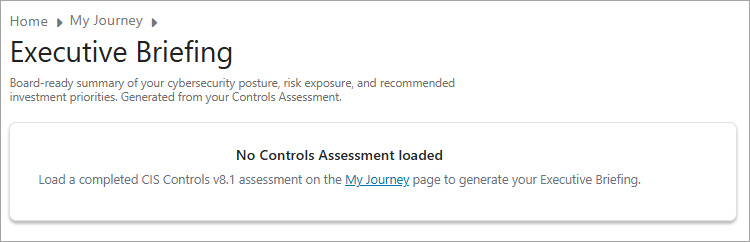
No Controls Assessment Loaded
If no Controls assessment is loaded into My Journey, the report content is hidden and a banner is displayed asking you to load an assessment. No briefing information is shown, and the export options do not produce a file. Select the link in the banner to load an assessment.
Controls Assessment Loaded
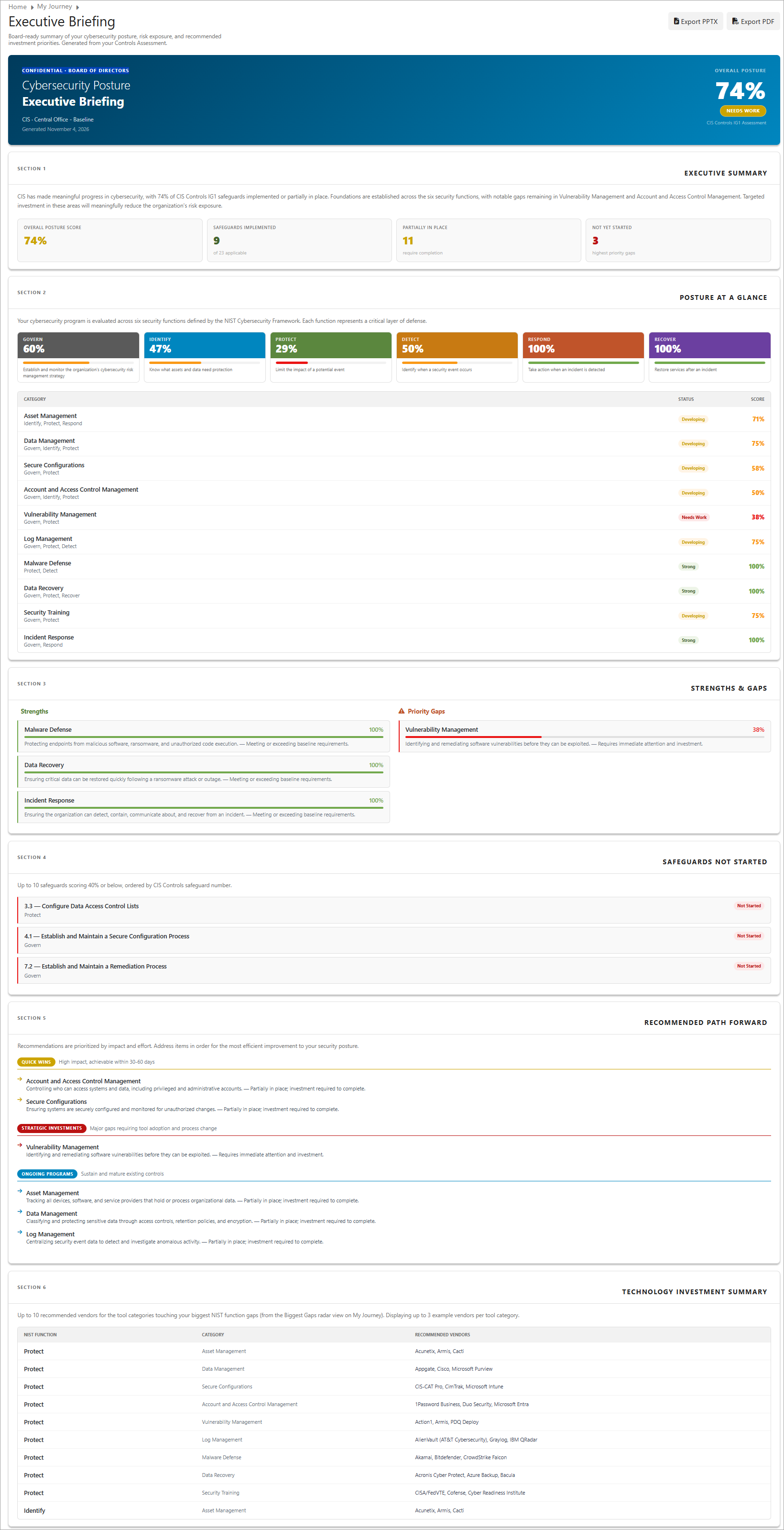
When a Controls assessment is loaded, the briefing displays the following sections.
Executive Summary
The Executive Summary opens with your overall posture score and three summary counts.
- Overall posture score: The average of your tool category percentages, with each category weighted equally. This is the same overall IG1 score shown on the Home page. It is not an average of all safeguard scores, because categories contain different numbers of safeguards.
| Status | Score Range |
|---|---|
| ON TRACK | ≥ 80% |
| NEEDS WORK | 40 – 79% |
| IMMEDIATE ATTENTION | < 40% |
The three summary counts are calculated from the individual safeguard scores in the loaded Controls assessment. Only scored safeguards are counted.
| Summary Count | Safeguard Score Range |
|---|---|
| Safeguards Implemented | 81 – 100 |
| Partially in Place | 41 – 80 |
| Not Yet Started | 0 – 40 |
Results by NIST Security Function and Category
This section shows the six NIST security function scores (Govern, Identify, Protect, Detect, Respond, and Recover) followed by a table of your tool categories.
- Security function tiles: The six percentages match the security function tiles on My Journey.
- Category: Each tool category from the CIS Cost of Cyber Defense guide, with its score. Category names and percentages match those shown in My Journey.
Each score is color-coded using the same status bands used in My Journey:
| Color | Score Range |
|---|---|
| Green | ≥ 80% |
| Amber | 40 – 79% |
| Red | < 40% |
Strengths and Priority Gaps
This section highlights what is working and where your biggest exposure is.
- Strengths: Up to three categories that score green or amber.
- Priority Gaps: Up to three categories that score red.
Card titles match the tool category names in My Journey.
Safeguards Not Yet Started
This section lists up to 10 safeguards that have not been started, meaning they score below 40 in the loaded Controls assessment. Each card represents one safeguard, and cards are listed in safeguard number order.
Recommendations
Recommendations are grouped into three time horizons based on category score. Only categories that score below 80% are included, and up to three categories are shown for each group.
| Group | Category Score Range | Purpose |
|---|---|---|
| Quick Wins | 40 – 64% | Near-term improvements to categories that are partly in place |
| Strategic | < 40% | Foundational gaps that need larger investment |
| Ongoing Improvements | 65 – 79% | Continued refinement of categories that are close to on track |
Groups are displayed in the order Quick Wins, Strategic, and Ongoing Improvements. Within each group, categories are listed from lowest to highest score.
Example Vendors by Tool Category
This section lists up to 10 tool category and NIST security function results touching your biggest NIST function gaps, taken from the Biggest gaps list in the Radar view of My Journey. Up to three example vendors are shown for each tool category, selected alphabetically.
The vendors shown are examples to help start the investment conversation. They are not endorsements or rankings.
Exporting the Executive Briefing
The Executive Briefing can be exported so it can be shared outside the Platform. Both export formats contain the same information shown on screen and include a confidential footer.
| Export | Use |
|---|---|
| A fixed-format copy for a leadership packet or email | |
| PowerPoint | An editable slide version to add to an existing leadership deck |
Export the Briefing
- Go to Executive Briefing in the JOURNEY section of the sidebar.
- Confirm that the correct Controls assessment is loaded.
- Select Export PDF or Export PowerPoint.
- The file downloads to your browser's default download location.
Note
Exports are only available when a Controls assessment is loaded. If no assessment is loaded, the export options do not produce a file.
Tip
The exported layout follows the on-screen briefing in general format, but can differ in detail such as page breaks and slide layout.